- Auto Caption
Use Canva’s auto caption generator to boost your viewership
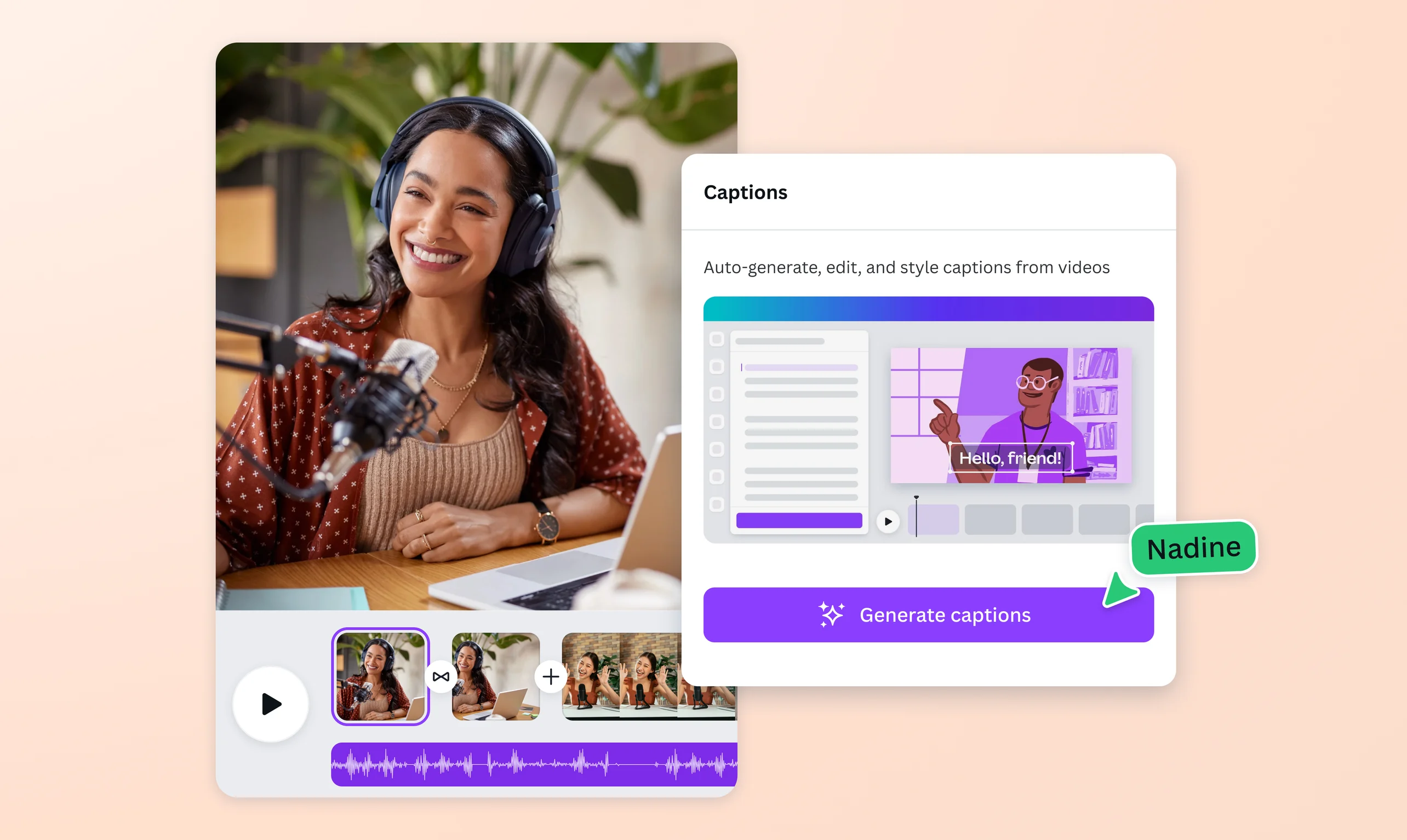
Captivate more viewers with your videos. Enhance their accessibility and appeal by using our free auto caption generator to detect speech in your videos and adding captions.
or drop it here
Learn about Canva's upload formats and requirements. See how we use your content in our Privacy Policy.
How to generate auto captions
Upload your video
Select the “Upload your file” button or easily drag and drop your file into the section.
Generate auto captions
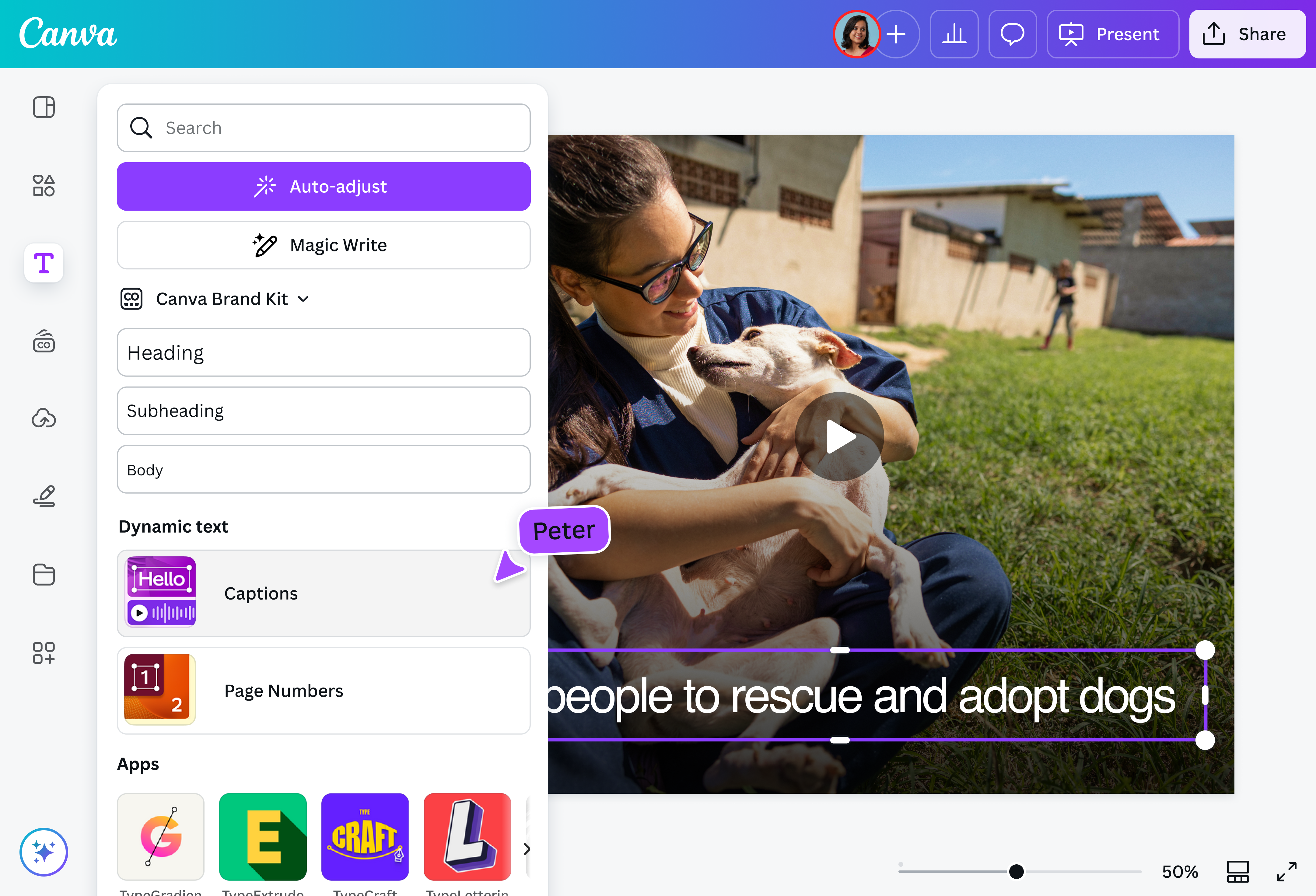
Click “Captions” under “Dynamic Text” in the Text section, select your video, and click “Generate captions.”
Download your design
Edit your captions then download your video as an MP4 file.
Auto-generate captions in a few clicks

Whether it’s a quick reel or an academic presentation, adding captions to your video content will keep viewers engrossed. Don’t sweat over transcribing them, though. Canva’s auto caption generator can do the work for you instantly. Get accurate captions and give yourself more time to polish your content for maximum engagement.
Broadcast your message loud and clear

Explainer videos are helpful. However, you must consider your audience’s attention span and audio sensitivity. Avoid confusion and misinformation. Let Canva’s auto caption generator detect speech in your videos and provide subtitles that viewers can read along. Use captions, too, to add context and include citations where needed. Auto-caption videos to keep your viewers not just focused but properly informed.
Broaden your content’s reach

Online platforms let you tap market segments you never thought you could access. Be ready for a cross-cultural viewership and use our AI caption generator that can automatically detect the spoken language in your video clip and translate captions into another language of your choosing. With over 100 options available, you can effortlessly address a bigger audience and grow your channel.
Caption and polish your vids in one place

Consistent content creation calls for a streamlined production system. Find that in Canva’s Video Editor(opens in a new tab or window). Cut and splice scenes, add audio, apply effects, and more to spice up your narratives. Customize your auto-generated caption’s font style, size, and color to keep with your branding. Even better, speed up the video creation and editing process with AI using our Magic Design for Video (Pro)(opens in a new tab or window).
How to generate AI auto captions

Frequently asked questions
Auto captions or automatic captions, are computer-generated transcriptions produced using Automatic Speech Recognition (ASR) technology. Auto captions are displayed on the screen in sync with the words spoken in a video. They are also used to decipher certain sounds that can be heard from the clip.
Auto captions make content more accessible to viewers. They help those with hearing loss keep up with the dialog, and they also make sure viewers understand what they’re watching better.
- You can rely on our AI caption generator to do the job. Upload your video and click “Text” in the side panel of the editor. Choose “Captions” under Dynamic Text, click “Language” and choose the language you want to translate your auto captions to.
- You can add auto captions to videos online using our auto caption generator, no software download required. It’s incredibly user-friendly, plus you can use our video-editing tools to spruce up your clips.

@mahimagirdhar